
FondPix
Photo Wedding Invitations: How to Choose or Create the Right Picture
A practical guide to photo wedding invitations, including image crops, backgrounds, AI wedding photos, text space, print quality, and common mistakes.
FondPix creates two high-quality watermarked previews so you can see both portraits before deciding whether to keep them. If neither portrait feels right, you can leave the project unpaid. A one-time payment keeps these same two high-quality files without watermarks; it never creates replacement images.
Photo wedding invitations look simple, but the picture has to do a lot of work. It must show the couple clearly, leave room for text, match the wedding mood, and still look good after printing.
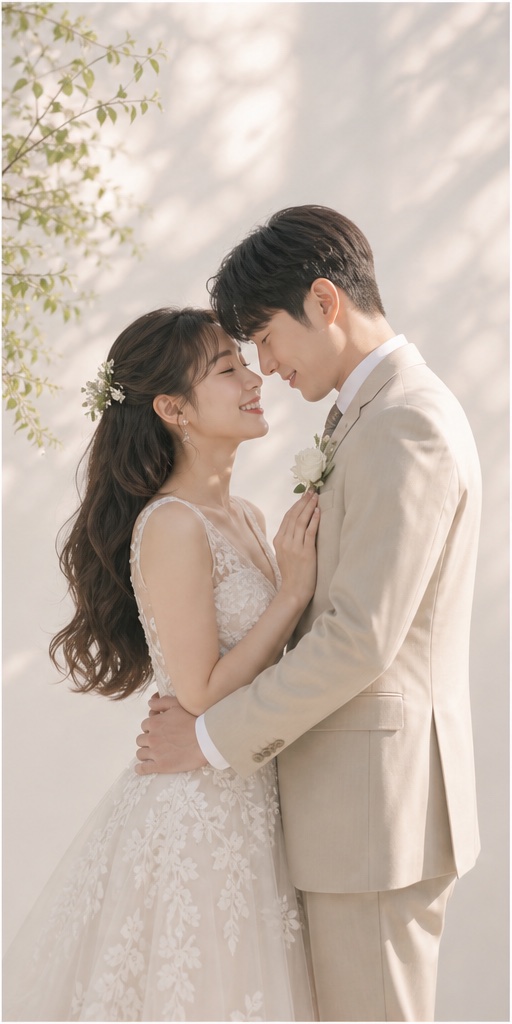
If you do not have a formal photo yet, an AI wedding photo generator can help you create invitation-ready options before the wedding day.
What Makes a Good Invitation Photo
The best photo wedding invitation image has:
- Clear faces.
- Simple background.
- Space for names and date.
- Clothing that matches the formality of the wedding.
- A crop that works vertically and horizontally.
- Enough resolution for print.
Busy scenes often fail on invitations. A Paris street, garden arch, or luxury hotel lobby can work, but only if the couple remains the focus and the text area stays clean.
Choose the Crop First
Before generating or selecting a photo, decide the invitation format.
Vertical invitations usually need the couple centered in the lower or middle part of the image, with room above for text. Horizontal invitations need space on one side. Square cards work best with a close portrait or centered composition.
If you use FondPix, add the crop instruction directly:
invitation-ready vertical crop, clean space above the couple for text
or
horizontal photo wedding invitation layout, couple on the left, clean negative space on the right
Best Styles for Invitations
Classic studio is the safest choice. It looks polished, the background is clean, and faces stay visible.
Korean soft-light portraits are good for couples who want a gentle, romantic invitation without a dramatic venue.
Garden ceremony portraits work when the wedding has floral, outdoor, or spring styling.
Luxury hotel portraits fit formal black-tie weddings.
Minimal black-and-white portraits work for modern invitations and small printed cards.
Destination scenes are useful when the location is part of the story, but keep them restrained.
Mistakes To Avoid
Do not choose a photo where the faces are too small. Guests should recognize you without zooming in.
Do not place text over faces, hands, bouquet, or detailed fabric. Text belongs on clean background.
Do not use heavy filters. They can look fine on a phone but muddy in print.
Do not generate only one version. Create several crops and compare them inside the actual invitation layout.
Print Quality Checklist
FondPix creates two high-quality watermarked previews so you can see both portraits before deciding whether to keep them. If neither portrait feels right, you can leave the project unpaid. A one-time payment keeps these same two high-quality files without watermarks; it never creates replacement images.
If the invitation company compresses images, upload the cleanest file available and avoid screenshots.
Fast Layout Test
Before committing to a final photo, place it inside the actual invitation design:
- Add names, date, location, and RSVP line.
- Check whether text crosses faces, hands, bouquet, or detailed fabric.
- Test both mobile preview and print preview.
- Try one darker text color and one lighter text color.
- Make sure the couple still reads clearly when the card is viewed small.
If neither portrait feels right, you can leave the project unpaid. A one-time payment keeps these same two high-quality files without watermarks; it never creates replacement images.
Practical Prompt Examples
Classic:
realistic wedding portrait of the uploaded couple, classic studio style, white gown and black suit, cream background, soft light, vertical invitation crop, clean space above for names.
Garden:
romantic garden wedding portrait, floral arch, soft natural light, couple standing close, clear faces, clean space on the right for invitation text.
Luxury:
luxury hotel wedding portrait, black-tie styling, marble interior, refined lighting, couple centered lower in the frame, elegant invitation cover.
For more concepts, use 25 wedding photo ideas.